
Use a phone or tablet scanning app with offline-capable verification for most events. Reserve dedicated handheld scanners for the rare cases where you're running extreme throughput (think festival gates with 10,000+ people in an hour) or working in conditions that chew through consumer phones, like all-day outdoor tournaments in the rain. Here's why that's the right call for almost every youth sports event, school fundraiser, or local tournament: your staff already carry the hardware, and the software has caught up. Modern scanning apps validate tickets locally against a downloaded manifest, which means a dead Wi-Fi router at the gym doesn't shut down your gate.
- Phone/tablet app with offline mode: right for most youth and school events
- Dedicated handhelds: right for high-volume festivals or extended outdoor use
- Wallet passes: best paired with either option to cut attendee friction
Pro Tip: Before opening night, run one full test with airplane mode on and one with Wi-Fi live. If both scan clean, you're ready.
Key Takeaways
Reliable mobile ticket scanning depends on offline-capable verification, a pre-downloaded manifest, and staff who've run a test scan before doors open.
| Point | Details |
|---|---|
| Pick phones over handhelds | A phone or tablet app with offline mode covers nearly every youth and school event; save handhelds for extreme throughput. |
| Offline verification is the safety net | Spent-proof or manifest-based scanning keeps the gate running when Wi-Fi drops, a common issue in gyms and outdoor venues. |
| Download the manifest before doors open | Pull the full ticket list and offline assets during load-in while the connection is still strong. |
| Staff one scanner per 150 to 200 attendees per hour | Add a buffer staffer for manual lookups so one slow ticket doesn't stall the line. |
| Athlo bundles ticketing and scanning | Athlo lets youth and school sports organizers sell QR tickets and scan them in-app, with payments handled through escrow. |
Table of Contents
- Should You Use a Phone for Mobile Ticket Scanning?
- How Does Offline Ticket Verification Actually Work?
- What's the Pre-Event Setup Checklist?
- How Many Staff Do You Need Per Scanning Lane?
- What Do You Do When a Scan Won't Read?
- Why Most Ticket-Scanning Advice Misses the Real Problem
- Get QR Ticketing and Scanning Built Into Athlo
- Sources
- FAQ
Should You Use a Phone for Mobile Ticket Scanning?
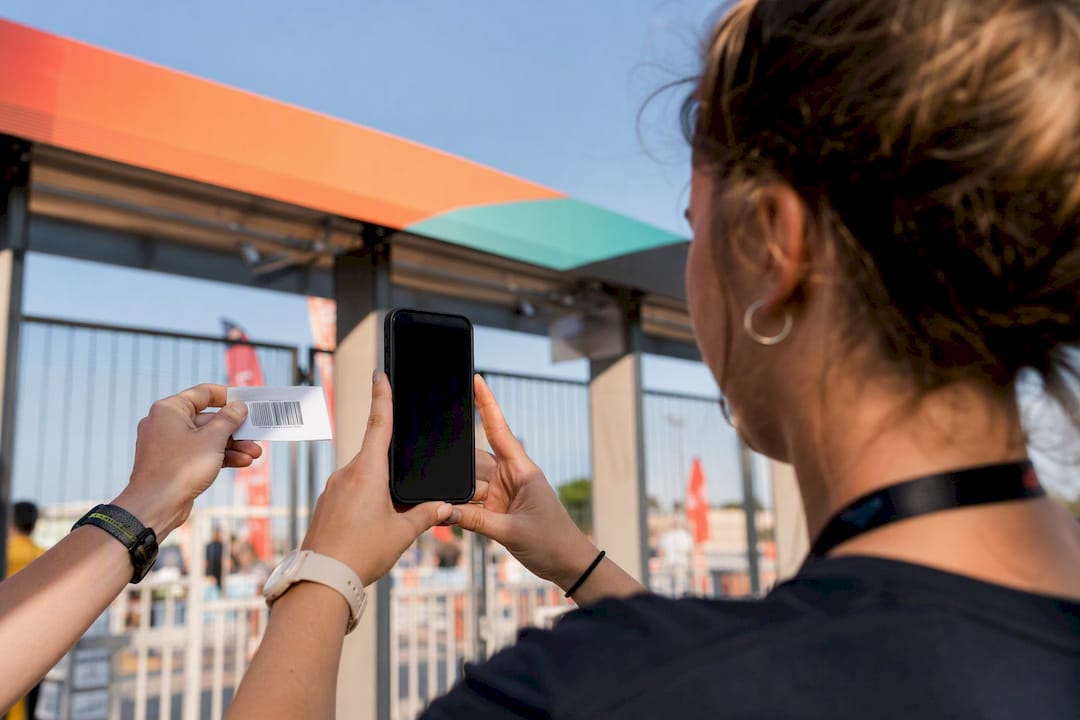
Yes, and for most organizers, a phone or tablet is the better call than a dedicated handheld unit. The question isn't really "can a phone do this job" anymore. It's whether your event's size and setting call for something tougher.
Staff devices (phones/tablets)
- Low cost since you're using hardware staff already own
- Fast to train volunteers on because the interface looks like any other app
- Flexible for multi-gate setups since you can add a lane by handing someone a phone
- Downside: battery life and camera quality vary by device
Dedicated handheld scanners
- Built for extended battery life and rugged outdoor use
- Longer scan range, useful for gates with heavy foot traffic
- Downside: upfront cost and separate hardware to manage, charge, and store
Native wallet passes (Apple Wallet/Google Wallet) Pushing tickets straight into a phone's wallet app cuts down on the "I can't find my email" scramble at the gate, and it keeps the ticket accessible even when the attendee's own connectivity is spotty, according to Gametime's wallet integration guidance. Pair wallet passes with either scanning approach above for the smoothest attendee experience.
For device compatibility, look for apps that lean on the phone's native camera APIs rather than a clunky custom scanner. Scanner apps built for both iOS and Android generally perform best when they use the OS-level camera focus and exposure controls instead of reinventing them.
How Does Offline Ticket Verification Actually Work?
This is the part that separates a smooth gate from a stalled line. There are two verification models, and knowing the difference matters more than any feature checklist.
Online validation checks each ticket against a live server the moment it's scanned. It's simple and always current, but it's only as reliable as the venue's internet, and gymnasiums, fields, and fairgrounds are notorious dead zones.
Offline (spent-proof) verification works differently. The ticket carries a cryptographic signature the scanning app can check without calling home, and once scanned, it's marked "spent" locally on that device. Some systems embed these cryptographic spent-proofs directly in the QR code, which stops someone from screenshotting a ticket and walking it through a second gate before the system catches up.
The strongest offline systems never let the signing secret touch the scanning device. The scanner can confirm a ticket is valid, but it can't forge new valid tickets, because it only holds the public half of the verification key.
Open-source scanner projects show this pattern in the wild. The Kadenz scanner, for example, validates tickets against a pre-downloaded signed manifest on the device, and the signing key never leaves the server.
- Multiple gates need to sync eventually, even if they scan offline all night
- Reconciliation happens when connectivity returns, comparing each device's "spent" list
- A mismatch (same ticket marked spent on two devices) flags for manual review, not automatic rejection
The trade-off: offline systems need a fresh manifest download before doors open. Skip that step and your scanner is checking against yesterday's guest list.
What's the Pre-Event Setup Checklist?
Do this during load-in, not five minutes before doors open.
- Install the scanning app on every device and assign staff accounts with the right permissions (some should only scan, others need refund/reissue access).
- Download the full ticket manifest and any offline assets while you still have strong Wi-Fi.
- Charge every device to 100%, update the OS if a patch is pending, and test the camera and flashlight in the actual lighting the gate will have at showtime.
- Set up a network fallback: a mobile hotspot as backup, plus a printed guest list as the last resort.
- Run five to ten test scans per device and give staff a five-minute walkthrough on what a good scan looks and sounds like.
Pro Tip: Test scanning in the exact spot attendees will stand, not the well-lit office. Gym entryways and outdoor tents have terrible glare, and that's where scans actually fail.
Vendor documentation echoes this pattern: event check-in guides consistently recommend testing scan speed and battery life during setup, and keeping at least one spare device charged and ready.
How Many Staff Do You Need Per Scanning Lane?
One trained scanner can typically process many attendees a minute with a smooth-flowing line and a solid app, assuming tickets scan clean on the first try. Some professional scanning systems claim sub-second validation per scan when multiple devices sync in real time across gates, which is the throughput ceiling you're aiming for, not the average night.
Realistic staffing for a youth tournament or school event:
- One scanner per a typical manageable number of expected attendees per hour
- A second "buffer" staffer nearby for manual lookups (name, order number, ID check) so a slow ticket doesn't stall the whole line
- A team lead watching a dashboard, if your app has one, for duplicate-scan alerts and error rates across all gates
When a duplicate scan hits, don't just wave the second person through or turn them away on the spot. Pull them aside, check the order details, and confirm whether it's a legitimate re-entry, a shared screenshot, or an honest mix-up between family members. Most duplicate flags turn out to be innocent (a parent forwarded the ticket to two phones), but the ones that aren't are exactly what spent-proof verification exists to catch.
What Do You Do When a Scan Won't Read?
Most scan failures come down to distance and angle, not a broken ticket. Back the phone off six to eight inches, tilt it slightly to kill glare, and make sure the flashlight is on if you're under a tent or in a dim hallway.
- Screen brightness too low: ask the attendee to bump it up
- Cracked or pixelated screenshot: pull up the order by name or confirmation number instead
- Manifest looks out of date: reconnect briefly and force a manifest refresh before assuming the ticket's fake
- Repeated failures on one device: swap to a spare rather than troubleshooting mid-line
If two devices disagree about whether a ticket's been used, that's a reconciliation conflict, not a fraud case. Flag it and sort it after the rush, not while ten people are waiting behind that guest.
Field Notes From the Gate
"Approved, welcome in" beats a silent nod. Say it every time. New staff pick up scanning in under ten minutes, but they need a script for rejections too: "Let me look that up for you" instead of "that's not working." The real killers are dead batteries and Wi-Fi dead zones near metal bleachers, not bad tickets.
Why Most Ticket-Scanning Advice Misses the Real Problem
Most guides on this topic obsess over which app has the flashiest dashboard. That's the wrong fight. The events that actually run smoothly are the ones where someone thought about connectivity failure before doors opened, not the ones with the prettiest scan animation.
Here's what the conventional advice gets backwards: it treats offline mode as a nice-to-have edge case. For youth and school sports events specifically, spotty gym Wi-Fi and packed parking-lot cell towers are the norm, not the exception. If your scanning plan only works with a strong signal, you don't have a plan, you have a hope.
What should you prioritize first? Not features. Test your actual gate location under actual conditions, with the app in airplane mode, before you ever sell a ticket. Everything else, staffing ratios, fraud scripts, spare devices, is secondary to knowing your system survives a dead router.
This is exactly the gap Athlo was built to close for local sports organizers, and it's why the practical stuff (a working offline test, a trained volunteer, a charged spare phone) beats any spec sheet every time.
— Abdulazeez
Get QR Ticketing and Scanning Built Into Athlo
Running a youth tournament or a school game night doesn't need a separate ticketing vendor bolted onto your existing sign-up sheets and group texts. Athlo bundles QR-ticketed event entry, pickup-game discovery through LinkUp, and escrowed payments into one app, so the same tool that gets players signed up also scans them in at the gate.
If you're organizing a local tournament, a school fundraiser game, or a pickup event that needs a paid door, Athlo handles the ticket sale and the QR scan in the same place, without juggling a separate check-in app on game day. Payments run through escrow, so organizers get paid without chasing down cash or Venmo requests between games. Set up your event, sell QR tickets, and hand a phone to a volunteer at the door. That's the whole setup.
Download Athlo on the App Store or Google Play and create your first ticketed event before your next game.
Sources
- AffixIO — Offline ticket verification
- Kadenz scanner (GitHub)
- Gametime support — Apple/Google Wallet
- Ticket Fairy — Ticket scanning app
These are for background reading, not vendor endorsements.
FAQ
Can I Scan Tickets From My Phone?
Yes. A standard phone camera paired with a scanning app that supports offline verification handles ticket entry for nearly every youth, school, or community event.
Can You Scan E-Tickets Off Someone's Phone Screen?
Yes, most scanning apps read a QR code directly off a screen, though a cracked or dim screen can cause misreads, so a manual lookup by name or order number is the backup.
Is There an App to Scan Tickets?
Yes, several mobile scanner apps are available for iOS and Android, and apps like Athlo build ticket scanning directly into the same platform used to sell the tickets.
What's the Best Ticket Scanning App for iPhone?
The best choice is an app that uses iPhone's native camera APIs for fast focus and supports offline manifest downloads, so scanning keeps working even without solid cell service.
When Should I Use a Dedicated Handheld Scanner Instead of a Phone?
Reserve dedicated handhelds for very high-throughput gates or harsh outdoor conditions where phone battery life and screen glare become significant challenges over extended periods.